


 Guest |
 e-KYC Verification for .IN Domain
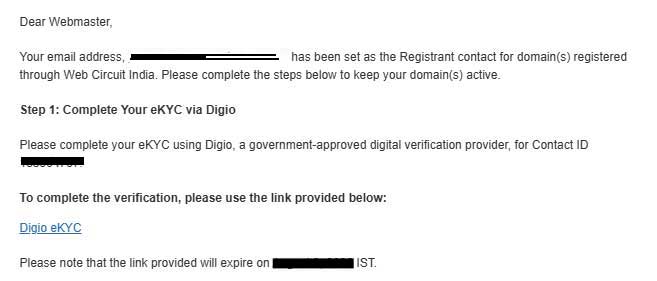
By: Team (Support) Posted on: January 1, 2026Step 1. Locate the Verification Email: Check the inbox of the email address associated with your domain registrant profile. You will receive an official notice from Web Circuit India. Subject Line: "Verification for .IN Domain(s)", Open the email and look for the Digio e-KYC link to access the Digio Portal. Click the link provided in the email
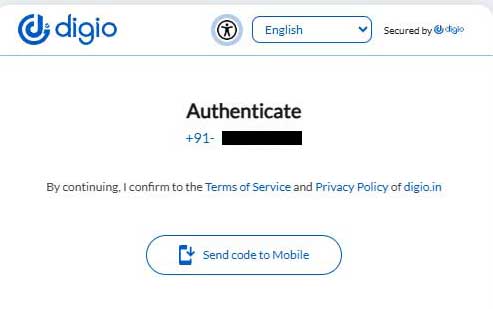
Step 2: Digio platform: You will be redirected to the secure Digio platform, which is the authorized partner for NIXI identity verification. Your registered mobile number appears in this form. Click on the Send code to Mobile.
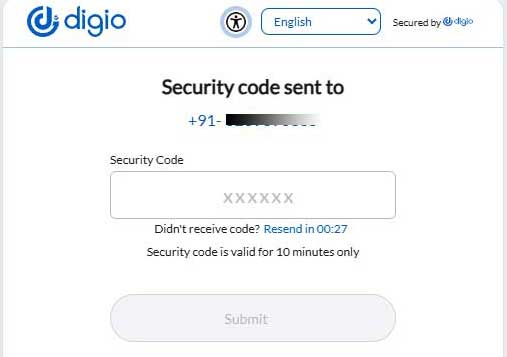
Step3: Digio OTP Vefification: The system will send a 6-digit Security Code via SMS to the mobile number listed in the registrant contact details for your domain. Check your phone for the SMS. Enter the code into the verification box. Click Submit or Continue.
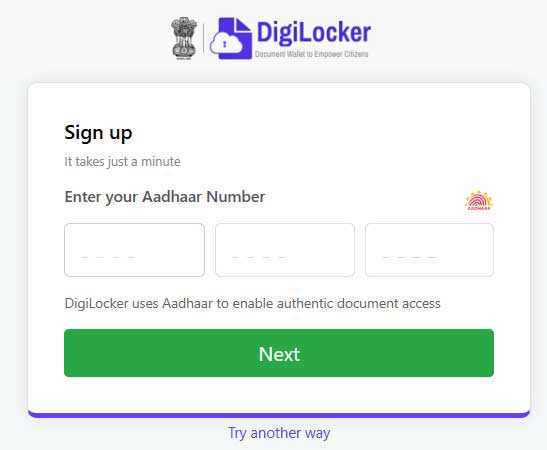
Step4: Enter Aadhaar Details: You will now see a form requesting your 12-digit Aadhaar Number. Input your Aadhaar number carefully. (The Aadhaar name doesn't need to match the registrant name on the domain.) Click next
Step5: Aadhaar OTP Authentication: Aadhaar will send a One-Time Password (OTP) to the mobile number linked to your Aadhaar card. (Note: This may be a different phone number than the one used in Step 3.) Enter the Aadhaar OTP and click Submit.
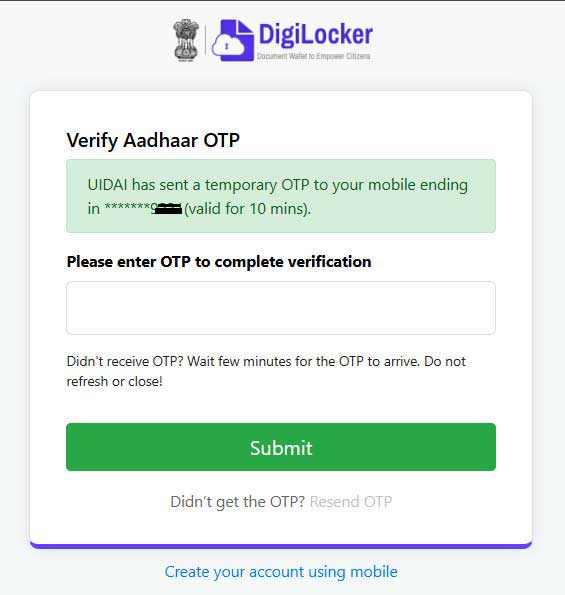
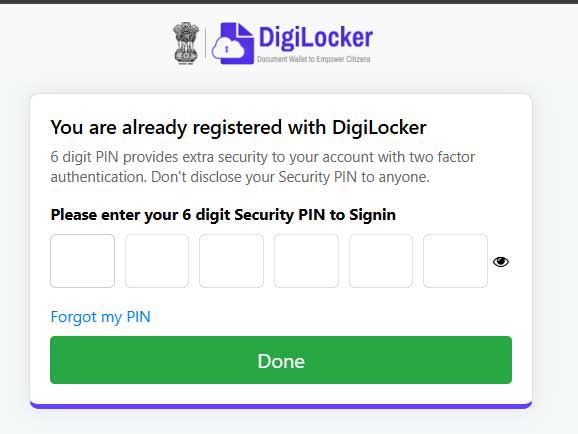
Step6: DigiLocker Integration: The system will now check for a DigiLocker account.
- Existing Users: Enter your pre-set 6-digit Security PIN.
- New Users: If you don't have an account, the system will prompt you to create one. Choose a secure 6-digit PIN and confirm it. This account will store your digital identity for future use.
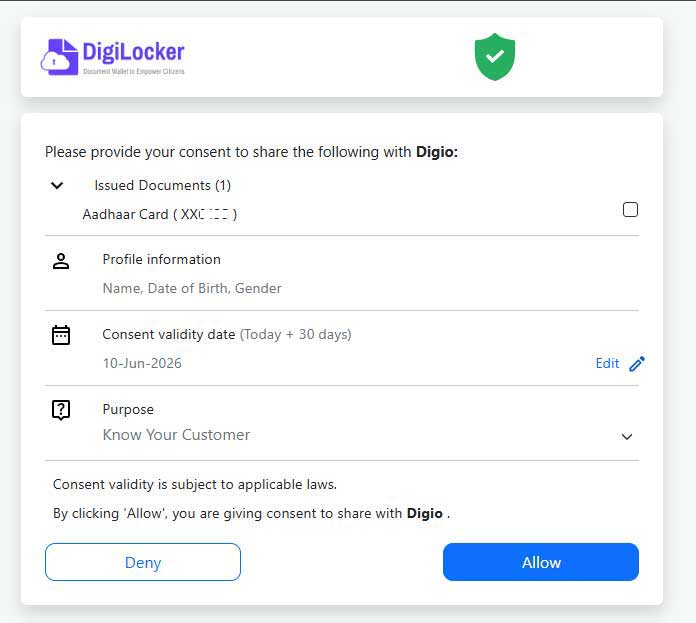
Step7: Consent and Authorization: A "Consent Form" will appear, outlining that your data will be used for domain verification. Tick the Checkbox to agree to the terms. Click the Allow or Authorize button.
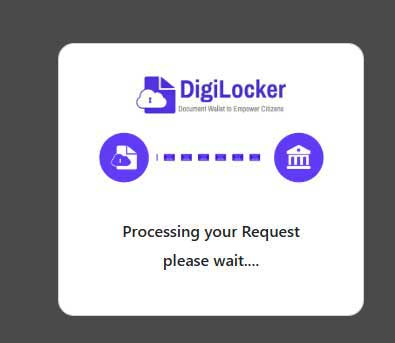
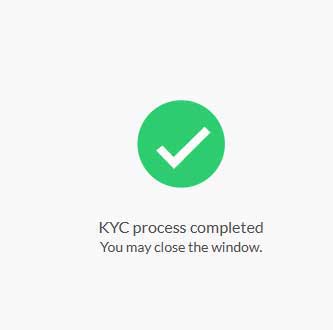
Step8: Processing and Success: A "Processing Request" screen will appear with a loading icon. Do not refresh the page during this time. Once finished, you will see a "Success" screen. Your domain status will be updated in the registry within 12 hours.
Quick Troubleshooting Tips
- Issue: OTP not received. Ensure your mobile network is stable, then wait 2 minutes before clicking "Resend."
- Issue: Invalid PIN for accessing the DigiLocker account: Use the "Forgot PIN" option if you cannot remember your DigiLocker credentials.
A Technical blog for Website Owner's
Categories
- Browsers (5)
- Domain (5)
- Email (7)
- Hosting (3)
- Internet (1)
- Localhost (18)
- Miscellaneous (2)
- Offers (2)
- Web Design (4)